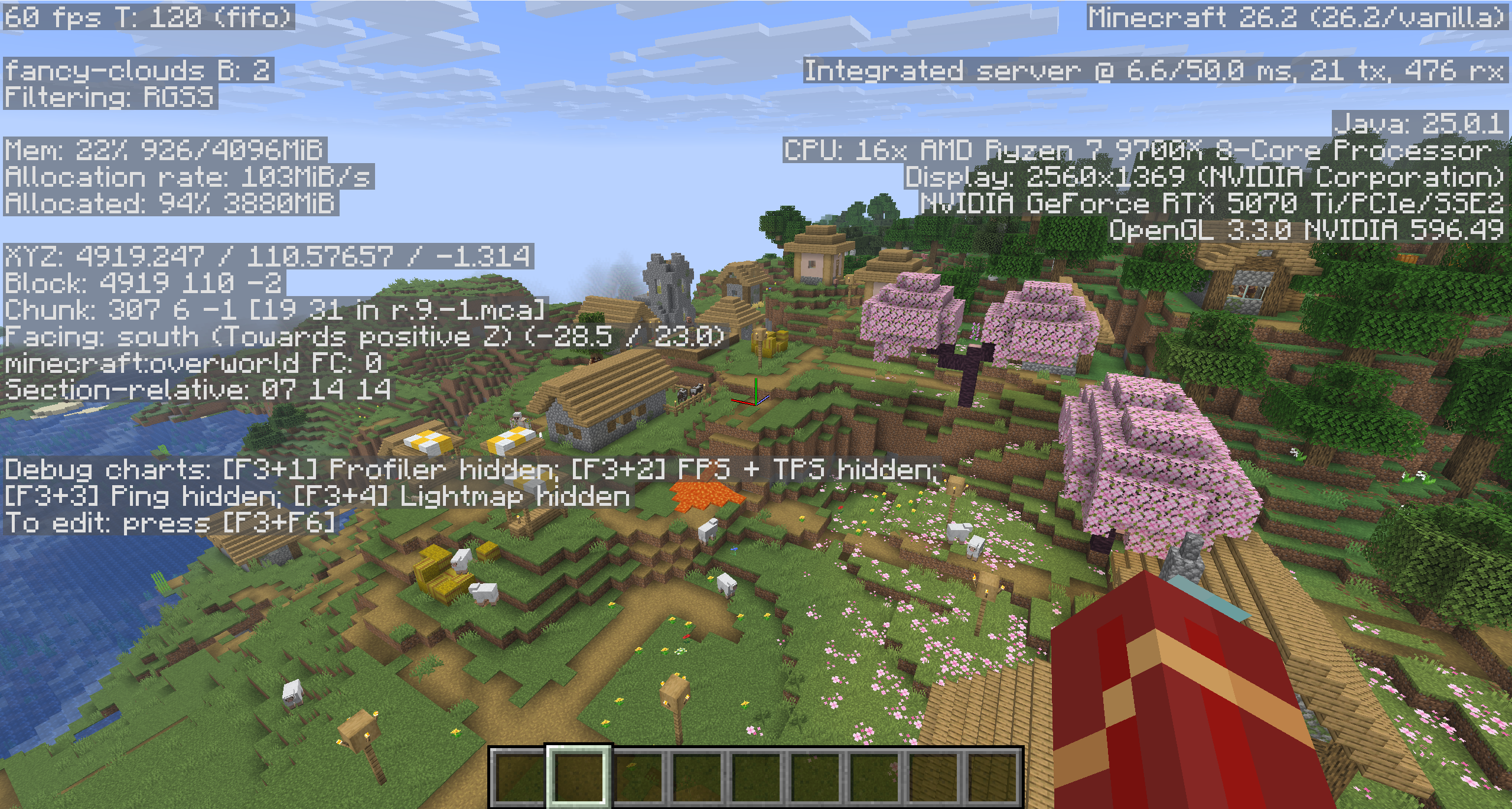
View Coordinates in Java Edition
Press F3 to open the debug screen and look for the XYZ line. The screen also contains enough technical information to briefly make you feel responsible for running the server, but XYZ is what you need for navigation.
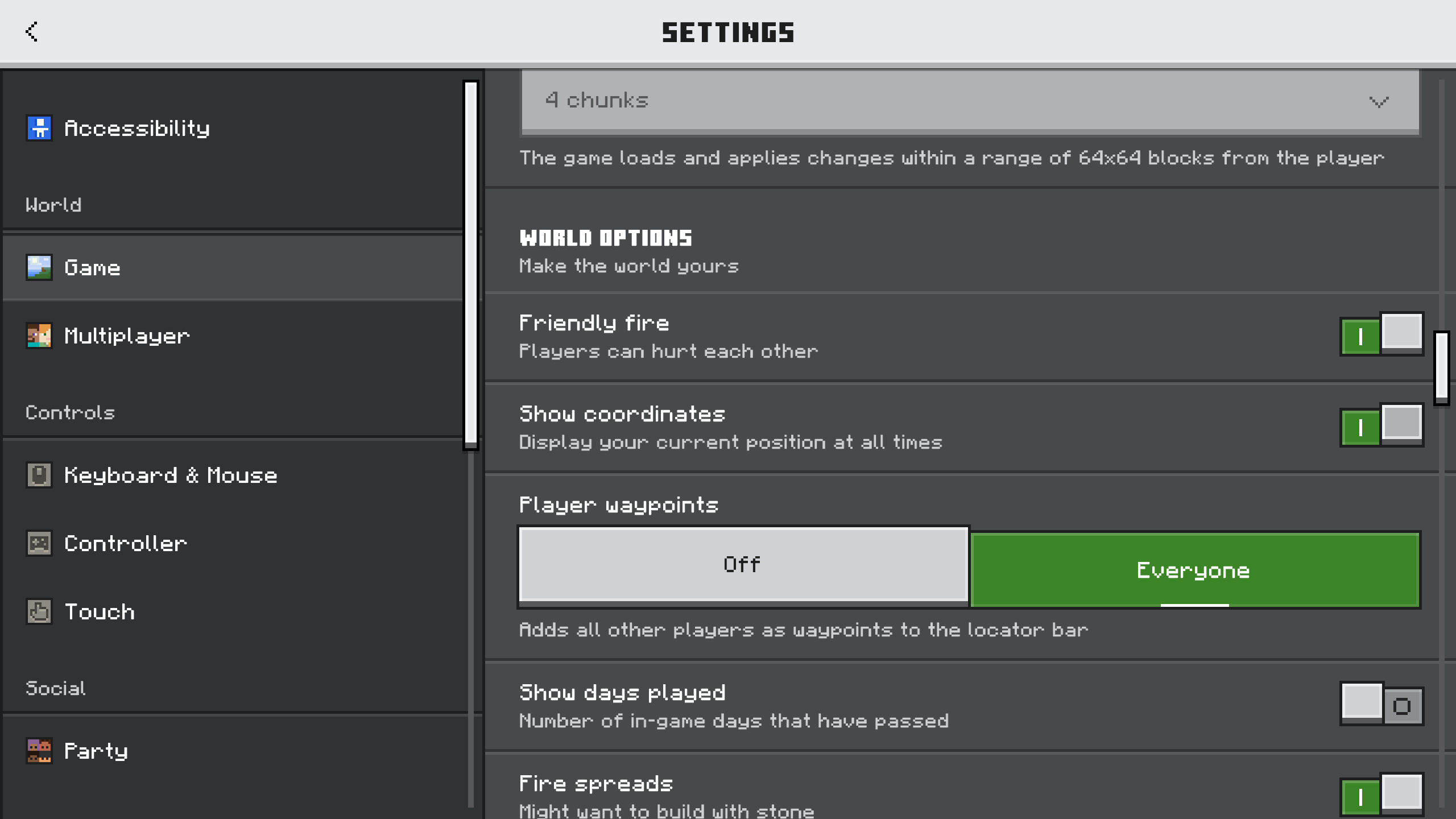
View Coordinates in Bedrock Edition
Pause the game, open Settings, choose Game, and enable Show Coordinates under World Options. Your position then appears on screen without opening a debug overlay.
Read X, Y, and Z
X changes as you travel east or west, Y changes with elevation, and Z changes as you travel north or south.
- Positive X points east; negative X points west
- Higher Y means greater elevation
- Positive Z points south; negative Z points north
Record More Than Three Numbers
Write down important locations before leaving them. Include the X, Y, and Z values in that order, plus the dimension, Minecraft edition, and version. Coordinates from the Overworld do not describe the same place in the Nether, and a seed can generate differently across editions or releases.
Share an Exact Location with a Friend
Coordinates are useful when another player needs the same exact location. Send the XYZ values displayed in your game so they can navigate to the spot in their world.
See Your Position with MineyMap
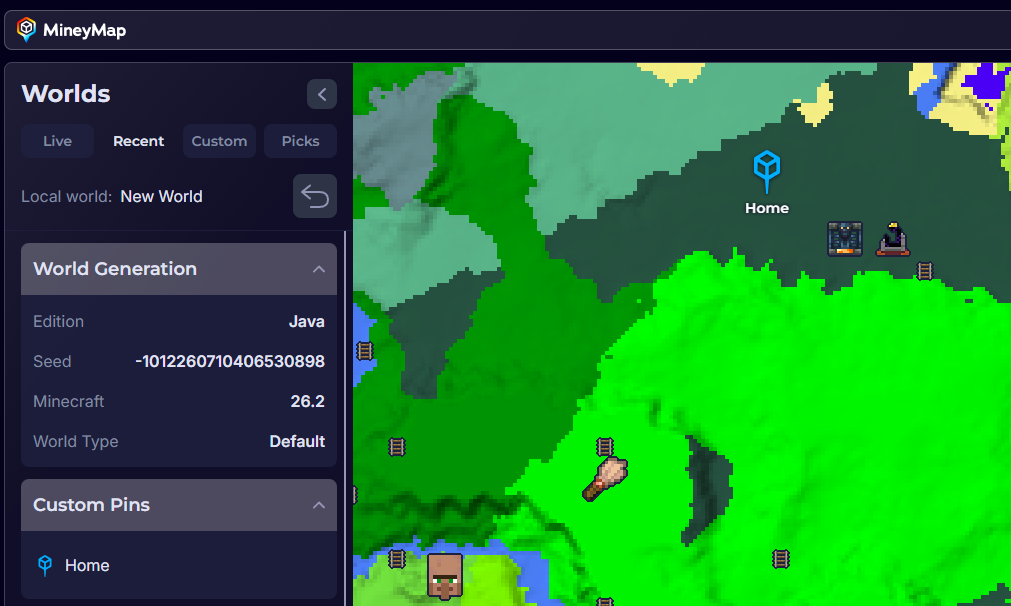
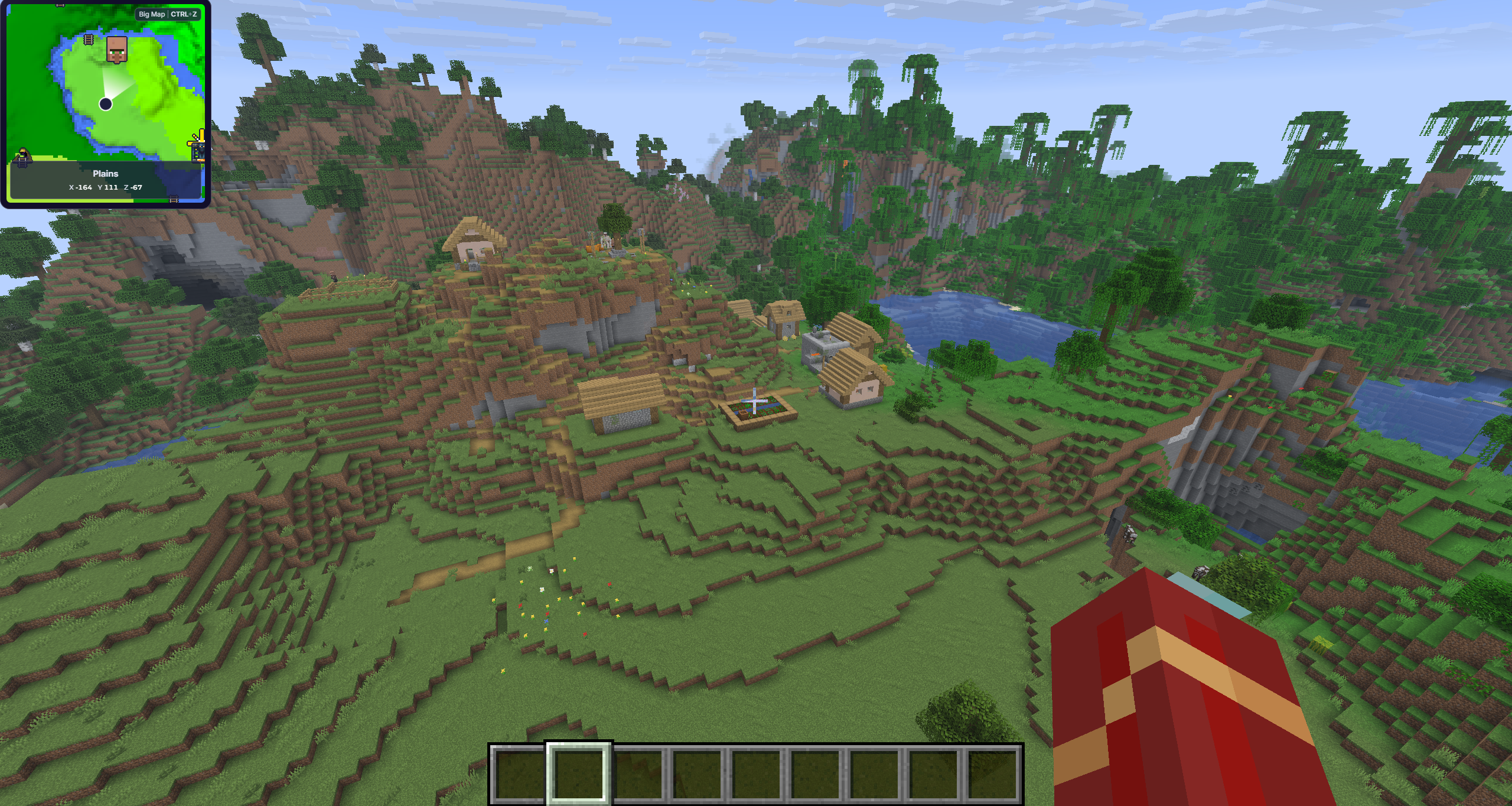
Instead of memorizing coordinates or repeatedly opening a debug screen, follow your live position on MineyMap's minimap or full world map. Your XYZ values remain visible when you need precision, but the surrounding terrain gives the numbers useful context.
Pin Places Instead of Memorizing Coordinates
Save bases, portals, discoveries, or future builds as named pins. MineyMap keeps those places visible on your map, so returning to them does not depend on remembering a string of numbers or keeping a separate note.